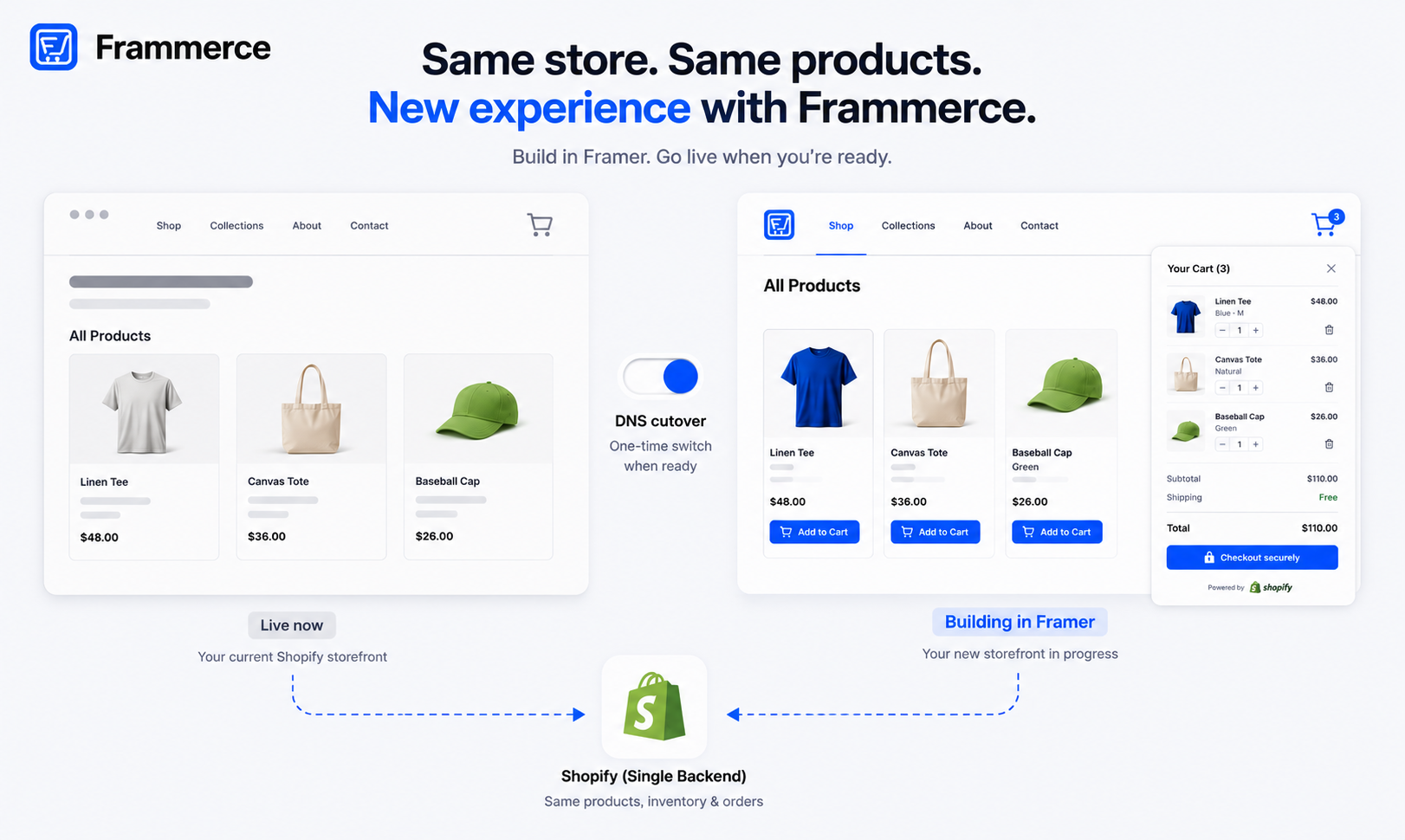
Key takeaways
- Frammerce doesn't touch your Shopify backend. Orders, inventory, discounts, and customer accounts keep running through Shopify exactly as they do today.
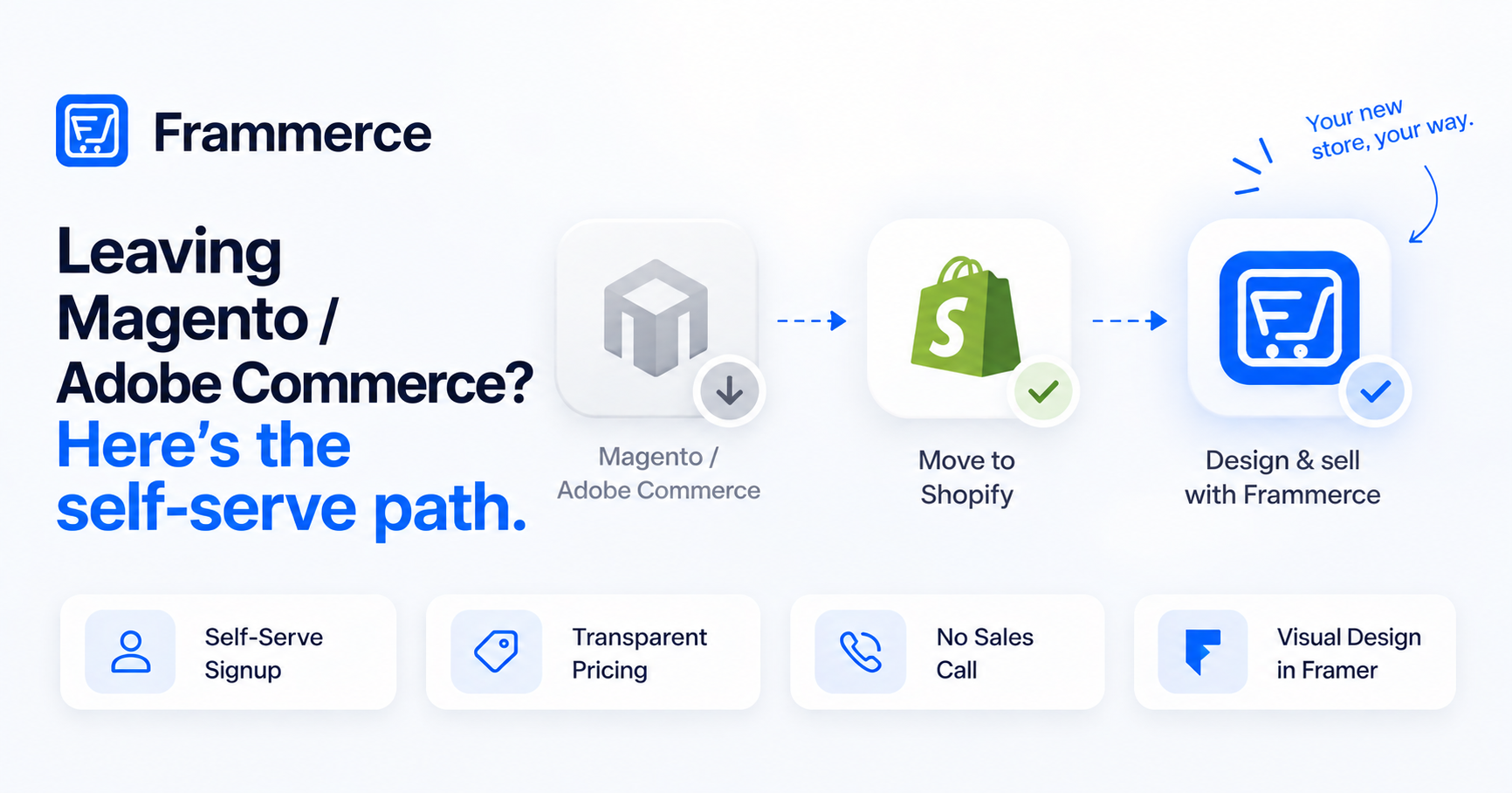
- A Shopify migration to Framer is a front-end swap, not a data migration. You build the new design in parallel while your current store stays live, then cut over.
- Basic is free and lets you build and preview the full redesign against your real catalog before you spend anything. Checkout requires Pro, a one-time $79.
- Redirect planning, not the redesign itself, is what protects your search rankings during the switch.
Does a Shopify migration to Framer put your store at risk?
Not if you treat it as a parallel build. The riskiest way to move an existing Shopify store to Framer is to edit the live storefront in place. The safer way is to build the new Framer front end alongside your current one, using your real Shopify catalog, and only point your domain at it once it's tested and ready.
Frammerce connects to Shopify through the Storefront API, the same connection Shopify's own storefronts use to pull products at runtime. Cart and checkout are meant to write, that's how a shopper actually buys something, but the product catalog itself is a different story: the sync reads your catalog without writing to it, altering it, or requiring a separate staging catalog. Your current storefront keeps taking orders the entire time you're designing.
What actually moves to Framer, and what stays on Shopify
This is the part most people get backwards. A Shopify migration to Framer replaces your storefront's front end: the pages, layout, product templates, cart UI, and checkout hand-off. It does not touch:
- Order history and order management.
- Inventory counts and stock rules.
- Customer accounts and saved addresses.
- Discount codes and promotions.
- Payment processing and tax settings.
- Apps that run on Shopify's admin side, not the storefront.
All of that stays exactly where it is, inside Shopify's admin. You're rebuilding the storefront's design and interaction layer in Framer, not migrating a database. If you don't have an existing store to migrate and you're starting fresh instead, the ecommerce guide covers that path. If your business logic depends on a Shopify app that injects itself into the storefront (a custom checkout upsell, a specific cart widget), check whether that app has a Framer-compatible path before you commit to a launch date, since some storefront-side app scripts won't carry over automatically. If you're weighing a plugin against building the Shopify connection yourself before you migrate anything, see plugin vs custom, or the broader framer vs Shopify breakdown for how the two platforms' responsibilities divide in general.
How do you run a Shopify migration without breaking your store?
- 1Connect Shopify to a new Framer project
Use a fresh Framer canvas, not your production one, and connect it to the same Shopify store. This syncs your product catalog into Framer's CMS collections without affecting the live site. The full connection steps are in the setup guide.
- 2Rebuild your key templates
Start with the pages that carry the most traffic and revenue: home, category or collection pages, product pages, cart, and checkout hand-off. Drop in Frammerce's product and cart components where your old storefront had static or custom-coded equivalents. Starting from a purchased or free Framer template rather than a blank canvas can shortcut this step considerably.
- 3Map every URL that gets a new address
List your existing product, collection, and content URLs. Where the new Framer site changes a URL pattern, plan a matching redirect. Where it doesn't have to change, don't change it.
- 4Test against real data, not placeholder products
Because the sync is live, you're testing variant pickers, stock status, and cart behavior against your actual catalog before launch, not a demo store.
- 5Set redirects and switch DNS
Once the Framer site is tested end to end, publish it, apply your redirect map, and point your domain at the new build. Your Shopify checkout continues processing orders through the switch since Frammerce hands off to Shopify's own hosted checkout rather than replacing it.
Because steps 1 through 4 happen without touching your live domain, there's no maintenance window where the store is down. The only moment anything changes for a shopper is the DNS cutover in step 5, and that's typically a matter of minutes, not hours.
Will your product and collection URLs change?
Only if you let them. Frammerce syncs your Shopify catalog into Framer's CMS, and how you structure your Framer pages determines the final URL pattern, not the sync itself. If keeping your exact existing URL structure matters (and for SEO, it usually does), build your Framer collection and product pages to mirror your current paths.
Where a URL does have to change, whether because of how Framer's routing works or a deliberate restructure, a 301 redirect from the old path to the new one is not optional. Search engines and any bookmarked or linked-to pages both depend on it.
What happens to your SEO rankings during a Shopify migration?
Some fluctuation is normal, but it's manageable. Shopify's own migration research estimates revenue impact as a formula: the share of your traffic from SEO, times the share of that traffic that's non-branded, times a 15% to 30% risk factor. In Shopify's own worked example, that works out to roughly a 2% to 4% total revenue dip, not a wholesale loss of search traffic, with recovery generally landing one to three months out depending on site size and how much of your traffic is non-branded.
That range assumes reasonable execution. The redirect map from the previous section is the single biggest lever you have over where you land in that range. A migration with clean, complete redirects and unchanged metadata tends to sit at the low end. A migration with broken redirects, deleted pages, and rewritten titles tends to sit at the high end, or worse.
None of this is unique to Frammerce or to Framer. It's what happens any time a storefront's URLs, templates, or content change meaningfully, on any platform. The mitigation is the same regardless of what you're migrating to: map first, redirect completely, and don't touch content that doesn't need to change.
Which Frammerce tier fits a Shopify migration?
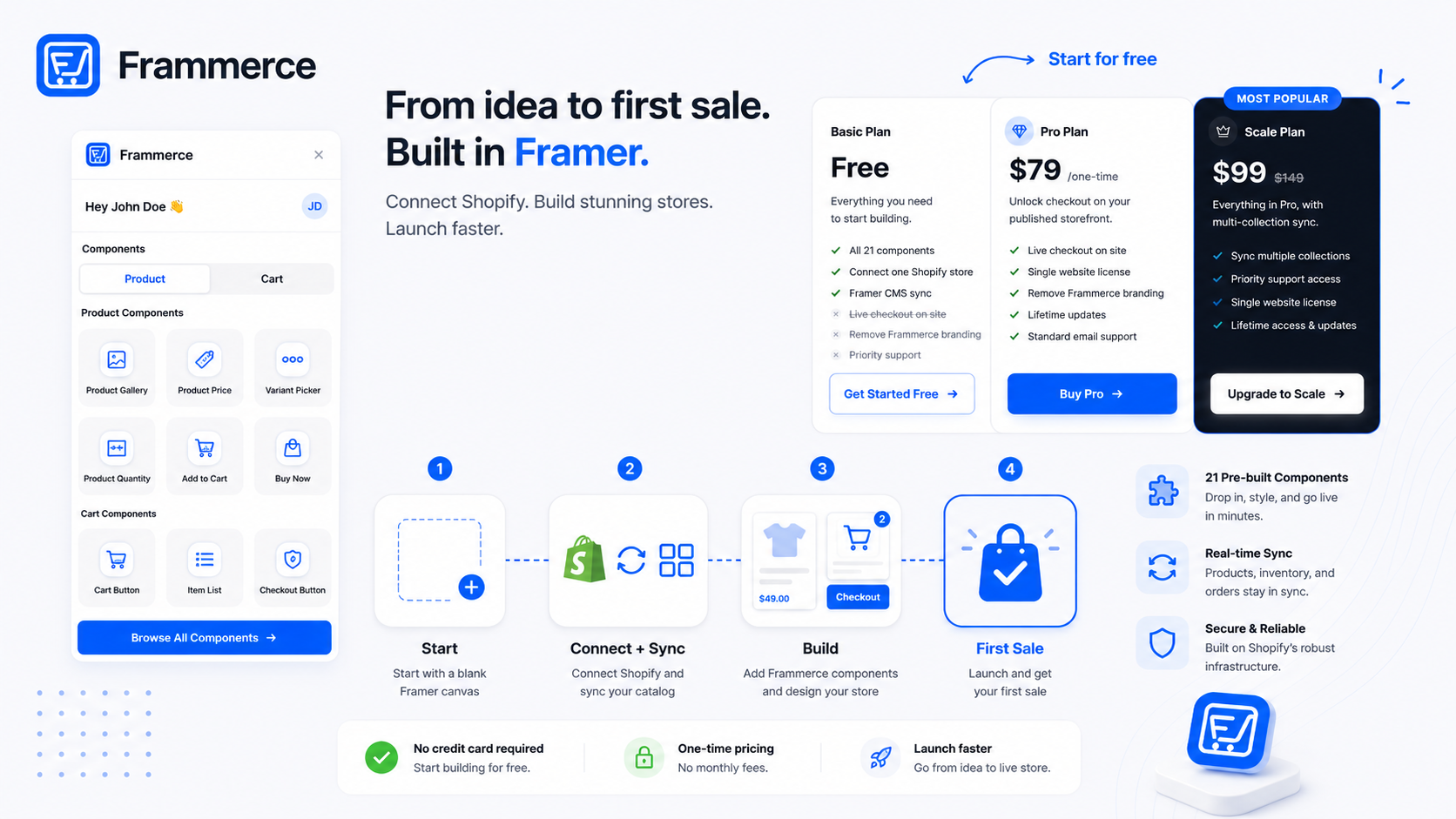
You don't need to commit financially before you know the new design works. Basic, which is free, includes all 21 components, one Shopify store connection, and full CMS sync, enough to build and preview the entire migrated storefront against your live catalog.
- Basic (free): all 21 components, one Shopify connection, CMS sync. No live checkout yet.
- Pro ($79 one-time): everything in Basic, plus live checkout on your published site, Frammerce branding removed, and a single website license with lifetime updates.
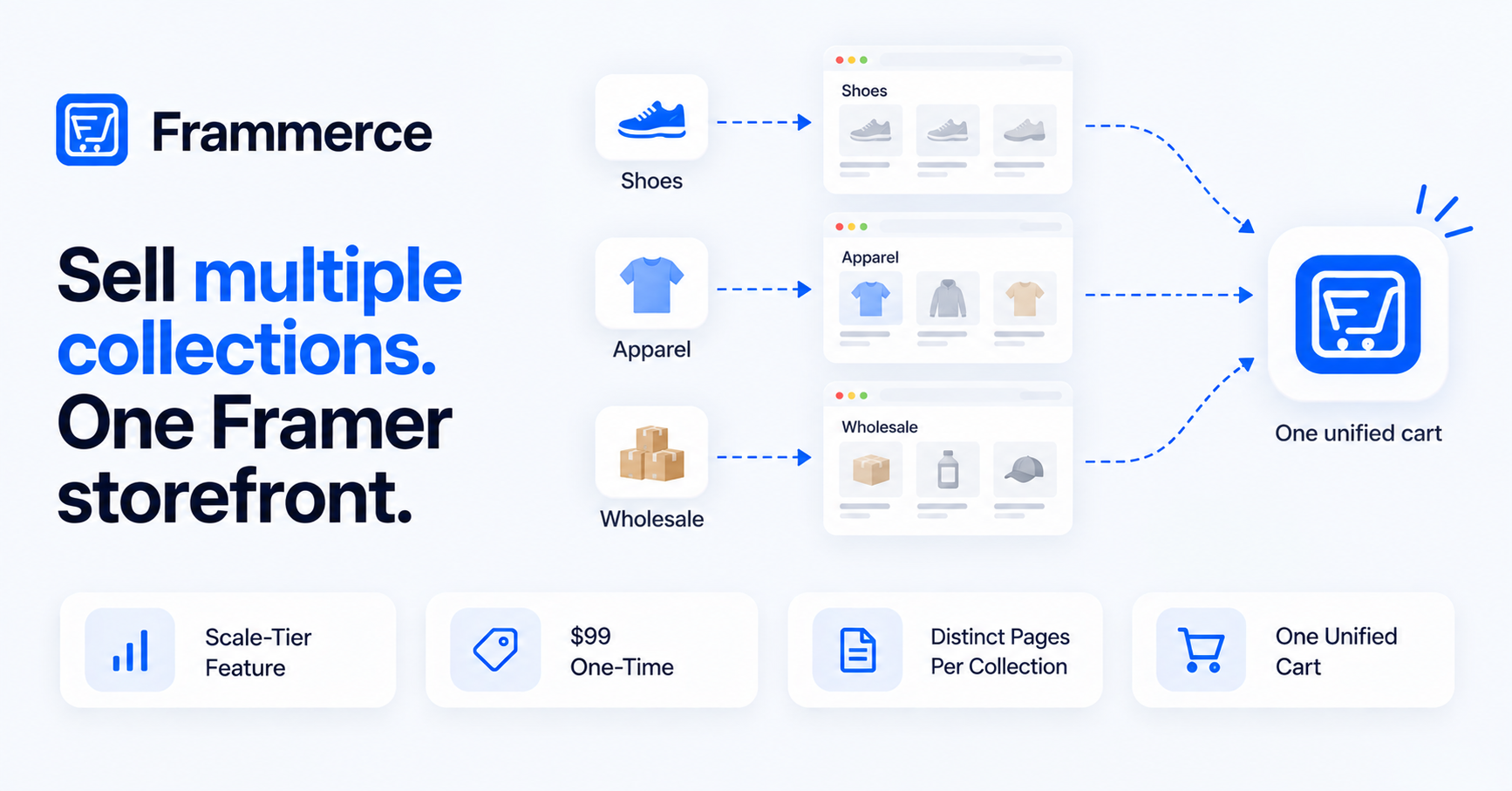
- Scale ($99 one-time, down from $149): everything in Pro, plus multi-collection sync and priority support, worth it if your catalog spans several distinct collections.
The practical sequence: build and test on Basic, then upgrade to Pro (or Scale, for a larger catalog) only when you're ready to flip DNS and take live orders through the new storefront. Full breakdown on the pricing page, and the full component docs if you want the details on any single component before you rebuild a template around it. If you're weighing Frammerce against other ways to add commerce to a Framer site before committing, see the plugin comparison.
What derails a Shopify migration to Framer?
A few patterns show up repeatedly:
- Skipping the redirect map entirely, assuming the new site will "just work" because the catalog synced correctly. Catalog sync and URL continuity are unrelated problems.
- Rewriting product titles and descriptions during the same migration that changes the URL structure, which makes it impossible to tell afterward whether a ranking drop came from the redesign, the copy change, or the URL change.
- Cutting over before checkout is tested end to end, including edge cases like out-of-stock variants, discount codes, and international shipping if you sell across borders.
- Treating apps that touch the storefront as automatically portable. Anything that injects into your old storefront's front end (not Shopify's admin) needs a Framer-side equivalent or a plan to live without it.
- Forgetting the non-catalog pages. A contact page or a customer waitlist form built into your old storefront isn't part of the Shopify sync, it needs rebuilding separately. See ecommerce forms for rebuilding those alongside the storefront.
None of these are Framer-specific or Frammerce-specific. They're the same failure modes that show up in any storefront migration, and they're avoidable with the sequence above.
Does migrating to Framer mean rebuilding my Shopify catalog from scratch?
No. Frammerce reads your existing Shopify catalog through the Storefront API and syncs it into Framer's CMS. Products, variants, pricing, and inventory come from Shopify as they already exist. You're rebuilding the storefront's design, not re-entering products.
Can I run the new Framer storefront on a subdomain first?
Yes, and it's a reasonable way to test with real traffic before a full cutover, as long as you're not indexing the subdomain for the same queries as your live domain. Point production DNS at the Framer build only once you're confident in it.
What if I only want to migrate part of the storefront?
Frammerce's components work page by page. Some stores rebuild category and product pages first and leave less-trafficked pages, like a blog or a static about page, on their existing setup temporarily. There's no requirement to migrate everything in one pass. If the redesign ends up touching nearly every page anyway, it may be simpler to treat it as a fresh build; the starting guide covers that path.
Does the migration affect my Shopify plan or app subscriptions?
No. Frammerce connects through the Storefront API and doesn't change your Shopify plan, backend apps, or billing. Storefront-side apps that render inside your old front end are the only thing to check individually, since those are tied to the design layer you're replacing.
Bottom line
Migrating an existing Shopify store to Framer works best as a parallel build against your live catalog, not an in-place rebuild. Orders, inventory, and customer data never leave Shopify, and your storefront doesn't go down while you design.
The real risk in any storefront migration isn't the redesign itself, it's checkout friction that was already there before you started. Across 50 studies on cart abandonment, the average sits at 70.22%, and a redesign is a good moment to fix a clunky cart alongside the platform switch, not just carry the same friction into a new front end. Our breakdown of what makes Framer Shopify stores actually convert covers those fixes in more detail.
Start the migration on a free Frammerce project against your real catalog, check the pricing page when you're ready to enable checkout, or get in touch if you want a second opinion on your redirect plan before you cut over.