Key takeaways
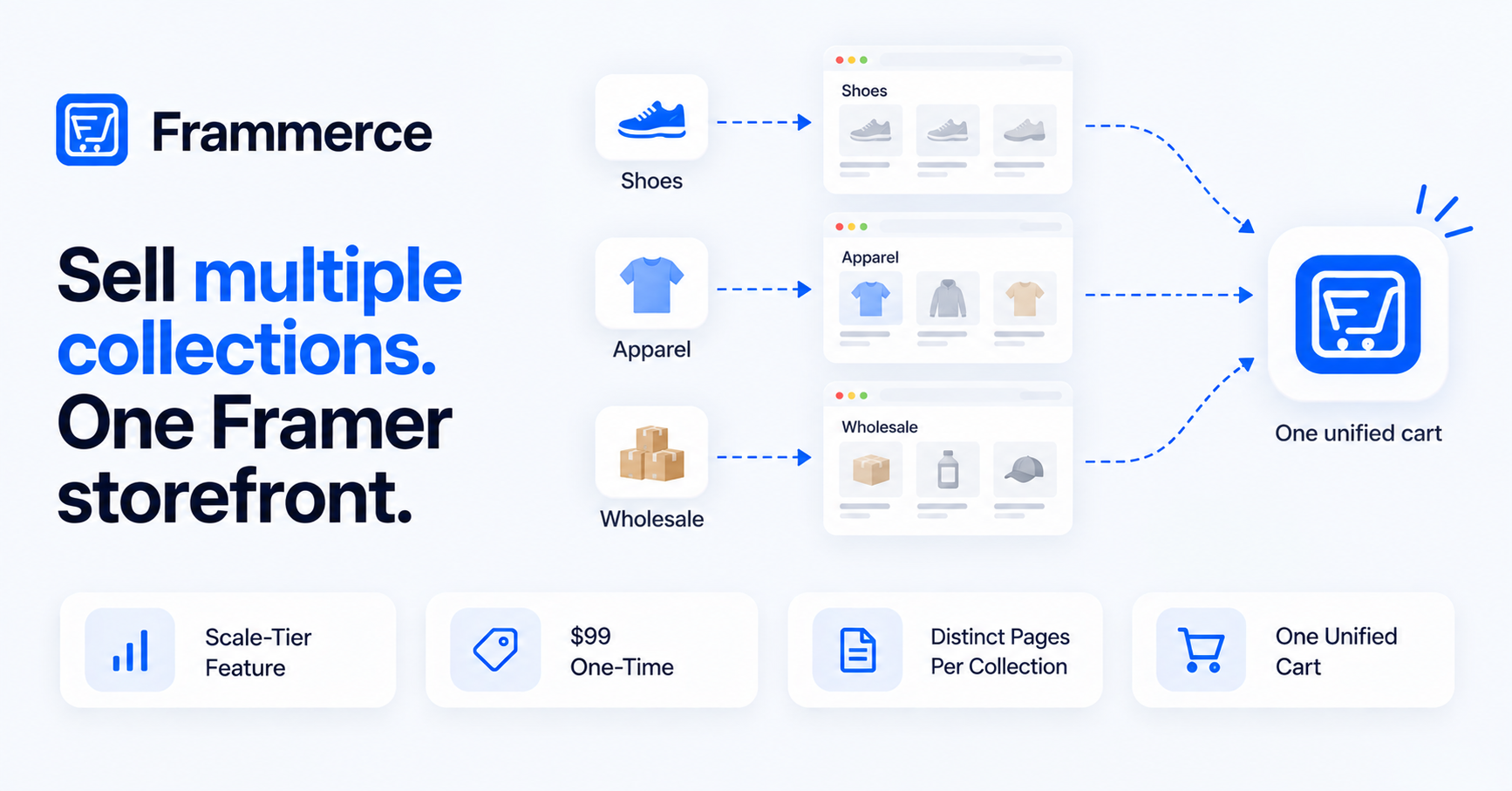
- Multi-collection sync means Frammerce reads several Shopify collections into Framer's CMS at once, instead of a single flat catalog feed.
- Most single-collection setups fall apart once a store sells across two or more real categories: shoes and apparel, retail and wholesale, or a seasonal line alongside a core one.
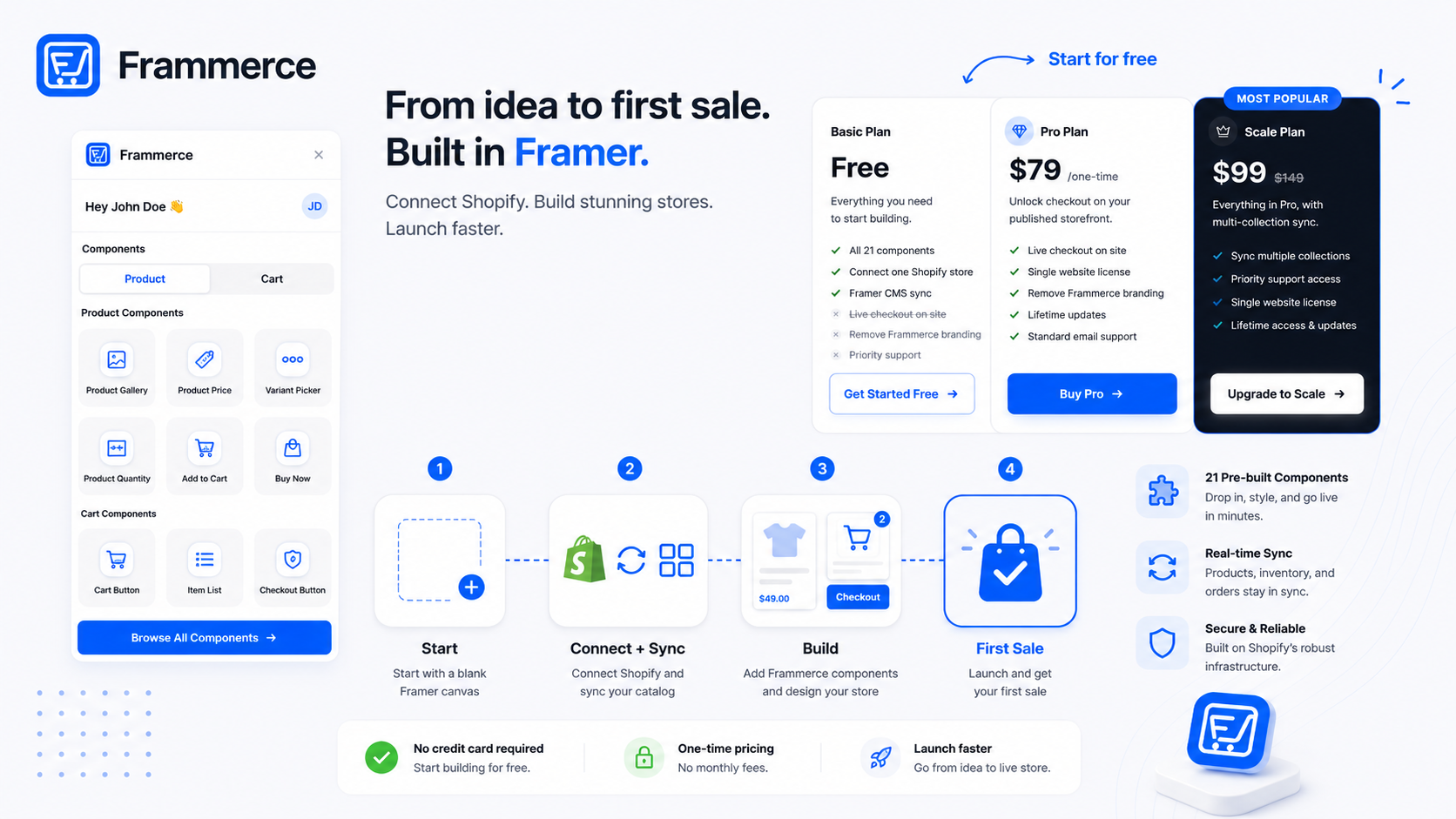
- Multi-collection sync is a Scale-tier feature, a one-time $99 (down from $149). Basic and Pro sync one Shopify connection with one collection feed.
- Good category structure has a measurable payoff: 76% of ecommerce sites score mediocre or worse on homepage and category navigation, and that's the exact spot a poorly organized multi-collection catalog fails first.
What is multi-collection sync, and do you need it?
Multi-collection sync lets Frammerce read multiple Shopify collections into Framer's CMS at the same time, each mapped to its own page structure, instead of pulling one collection feed into one flat catalog. You need it the moment your Shopify store has more than one real, distinct grouping of products that shoppers browse separately, not just one collection with filters applied on top.
A single-collection setup works fine for a narrow catalog: one product line, one size range, one audience. It starts to strain the moment you're running a shoes collection and an apparel collection, a retail line and a wholesale line, or a core catalog plus a seasonal drop, and want each to have its own landing page, its own navigation entry, and its own layout. If you're setting up a Shopify-backed storefront in Framer for the first time and already know it'll need this, the ecommerce guide covers the base build before you layer multi-collection sync on top.
How many Shopify collections can Framer actually display?
As many as your Scale-tier connection syncs, each rendered through its own CMS collection in Framer. There's no documented limit on collection count on the Frammerce side. What actually constrains a multi-collection catalog is how many distinct page templates you're willing to design and maintain, since each collection typically gets its own category page, even if the product page template underneath is shared.
In practice, the ceiling that matters isn't how many collections Frammerce will sync, it's how many genuinely distinct shopping missions your catalog actually has. Once you're adding collections that don't represent a separate way a shopper browses, most Shopify collections stop being separate storefront sections and start being filters within a shared browse experience, which is a navigation decision, not a sync limitation.
That distinction is worth sitting with before you sync anything. A large Shopify catalog with fifty collections doesn't necessarily need fifty Framer landing pages. Many of those collections might be better served as a filter on one broader page (color, size, material) rather than a standalone section with its own navigation entry. Reserve a dedicated synced collection and page for groupings a shopper would genuinely search or browse for as a separate destination, not for every tag your Shopify catalog happens to use internally.
How do you set up multi-collection sync in Frammerce?
Six steps take you from a single-collection Basic or Pro setup to a working multi-collection storefront on Scale:
- 1Upgrade to Scale
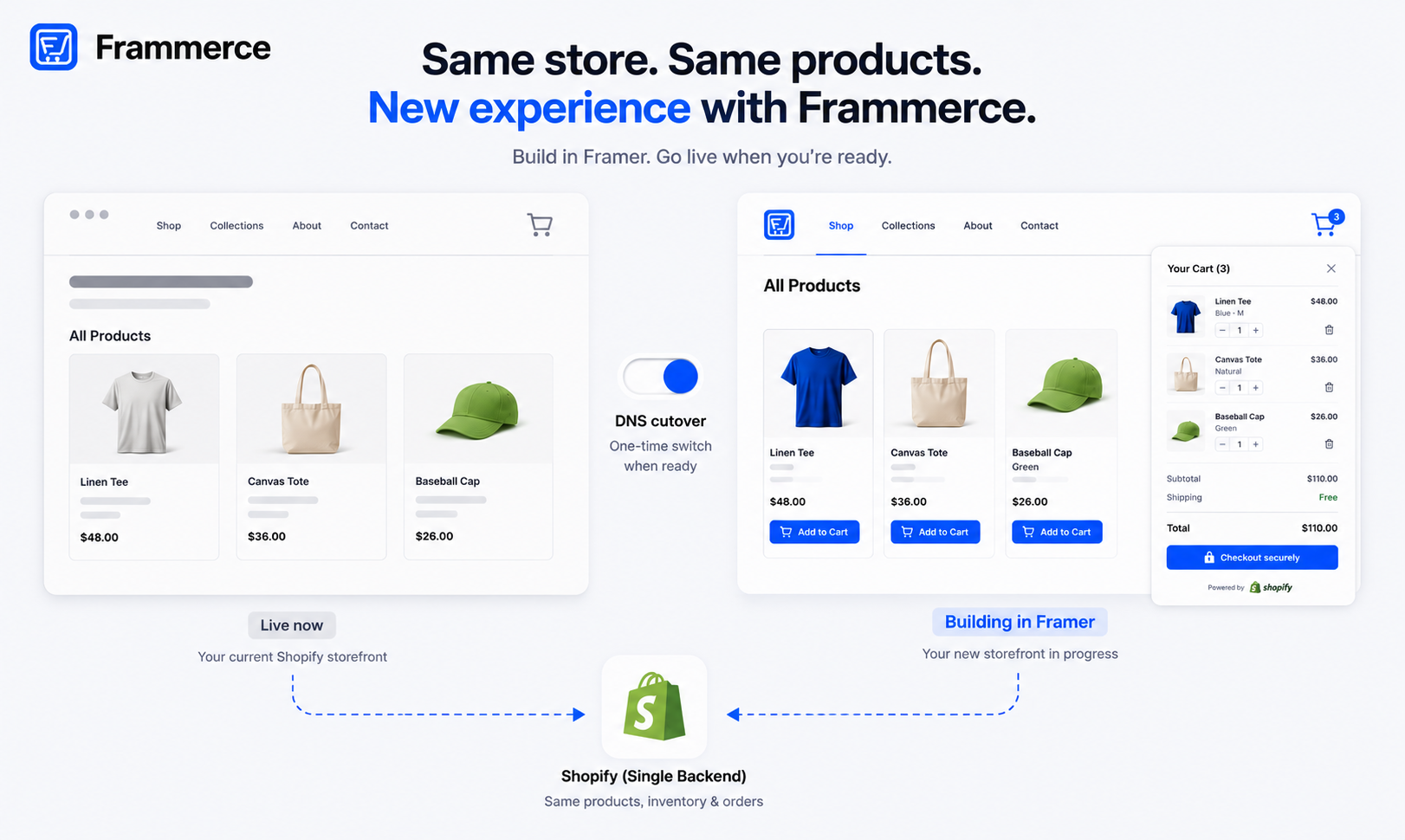
Multi-collection sync is a Scale-tier capability, so this is the starting requirement before anything else here applies. If you're still deciding whether Frammerce is the right tool for a multi-collection catalog at all, the plugin comparison is worth reading first.
- 2Confirm your Shopify collections are structured the way you want them to appear
Frammerce mirrors your Shopify collection structure. Clean that up in Shopify admin before syncing, not after.
- 3Sync each collection into its own Framer CMS collection
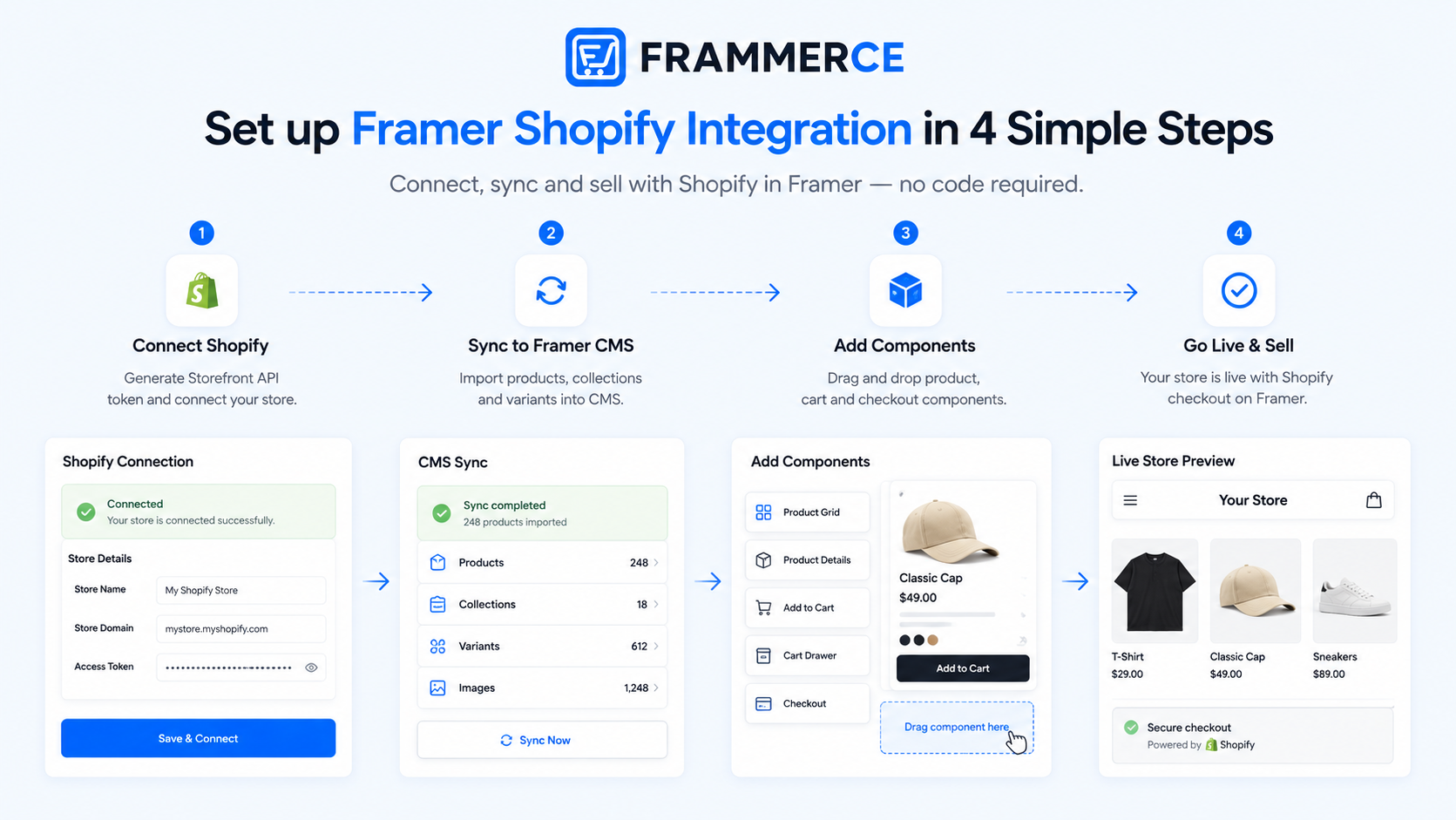
This is the step covered in the base connection flow in the setup guide; multi-collection sync extends that same connection to pull in additional collections rather than requiring a second Shopify connection.
- 4Build one category page template per collection type
Or a shared template with collection-specific sections if the groupings are similar enough (shoes and apparel might share a template, retail and wholesale usually shouldn't).
- 5Wire navigation to reflect the real structure
Not a flat product list. Each synced collection should have its own entry point, whether that's a top-level nav item or a sub-category under a parent grouping.
- 6Test cart behavior across collections
A shopper adding a shoe and a shirt to the same cart should see one unified cart, since Frammerce's cart state runs across the whole storefront regardless of which collection a product came from.
What breaks when Shopify collections are treated as one big list?
Findability breaks first. Baymard's research into ecommerce category and homepage usability found that 76% of sites perform at a mediocre level or worse on exactly this: helping shoppers find the right products through navigation and category structure. A multi-collection catalog crammed into one flat feed is a fast way to land in that group.
The specific failure pattern: a shopper looking for wholesale pricing lands in a page mixed with retail listings, or someone browsing a seasonal drop can't tell it apart from the core catalog. Neither shopper converts, not because the products weren't there, but because the structure didn't surface them. Multi-collection sync exists precisely to keep those groupings separate at the data layer, so your Framer pages can keep them separate visually too.
Do all your collections need their own page template?
No, and forcing that is usually wasted design time. Collections that share a similar product shape, similar imagery needs, similar filter types, can reasonably share one category page template with collection-specific data swapped in. Collections that genuinely differ in how a shopper browses them (a wholesale collection with bulk pricing tables versus a retail collection with lifestyle imagery) usually earn a separate template.
The test isn't "is this a different Shopify collection." It's "does a shopper browsing this collection need a meaningfully different page to make a decision." If yes, build it separately. If no, one flexible template handles both, and you save the maintenance overhead of keeping near-identical templates in sync by hand. If you're starting your category templates from a purchased or free starting point rather than a blank canvas, see the templates post on what a template does and doesn't give you.
Basic, Pro, or Scale: which tier unlocks multi-collection sync?
Only Scale. Here's the full breakdown, verified against the pricing page:
- Basic (free): all 21 components, one Shopify connection, single-collection CMS sync. No live checkout.
- Pro ($79 one-time): everything in Basic, plus live checkout, branding removed, and a single website license with lifetime updates. Still a single-collection sync.
- Scale ($99 one-time, down from $149): everything in Pro, plus multi-collection sync and priority support.
If you're currently on Basic or Pro and your catalog has grown into multiple real collections, that's the signal to move to Scale, not a sign you set the store up wrong the first time. Plenty of stores start with one collection and add more as the catalog grows. All 21 components are available at every tier, including Basic, so the component docs are worth a look regardless of which plan you're on; it's the sync and checkout capabilities that change between tiers, not the component set.
Multi-collection navigation patterns that hold up at scale
A few structures work consistently well once you're past two or three synced collections:
- Top-level nav per collection, best when each collection is a genuinely distinct shopping mission (shoes vs. apparel).
- Parent category with sub-navigation, best when collections are related variations of the same core offering (a seasonal drop under a main product line).
- A dedicated landing page per collection with cross-links to related ones, best when collections overlap in audience but not in product type (retail linking to a wholesale inquiry page, for example).
Whichever pattern fits, keep the underlying rule from the store examples post in mind: navigation should match how a shopper actually thinks about your catalog, not how your Shopify backend happens to be organized.
It's also worth deciding early whether collections are equal-weight or whether one is clearly primary. A store with a core catalog and a smaller seasonal line usually reads better with the core collection getting the main navigation slot and the seasonal one surfaced as a secondary link or banner, rather than presenting both as equally weighted top-level sections when shopper demand for them isn't actually equal.
Does multi-collection sync require a separate Shopify app?
No. It's a Frammerce plugin capability on the Scale tier, using the same Shopify Storefront API connection as single-collection sync. No additional Shopify-side app is required.
Can I mix synced collections with manually curated pages?
Yes. Synced collections populate from Shopify automatically, but nothing stops you from building a manually curated landing page in Framer alongside them, useful for a featured or seasonal selection that pulls from multiple collections at once.
What happens if I downgrade from Scale after syncing multiple collections?
This isn't documented behavior, so don't assume either way. Ongoing multi-collection sync is a Scale-tier capability, so contact Frammerce support before downgrading to confirm exactly what happens to your existing synced collections and CMS data.
I'm starting a new store, should I plan for multi-collection from day one?
Only if you already know you'll sell across genuinely distinct categories. Starting on Basic or Pro with a single collection and upgrading later costs you nothing structurally, since your Shopify collections and Framer CMS mapping carry over cleanly. The starting guide covers the base setup either way.
Do all synced collections need to use the same component set?
No. Product and cart components can be arranged differently per collection page. A wholesale collection might use a table-style layout with the Price and Quantity Input components, while a retail collection uses a visual grid with the Product Gallery component, both pulling from the same underlying sync.
Bottom line
Multi-collection sync turns Frammerce from a single-catalog tool into something that matches how multi-category Shopify stores actually operate: distinct collections, distinct pages, one unified cart underneath. It's a Scale-tier feature, and the moment your catalog outgrows one flat feed is the moment it earns its cost.
The bigger risk to a multi-collection store isn't sync structure, it's checkout friction once a shopper finally adds something to cart. Across 50 studies on cart abandonment, the average sits at 70.22%, and a well-organized multi-collection catalog only pays off if the checkout at the end of it is just as clean.
See how the full sync flow works on Frammerce, check the pricing page for the Scale-tier breakdown, or get in touch if your catalog structure is unusual enough to want a second opinion before you build.