

Generate a token
1
Open the Shopify admin
Go to your store’s Shopify admin:
https://YOUR-SHOP.myshopify.com/admin2
Install the Headless sales channel
Open the admin’s top Search bar (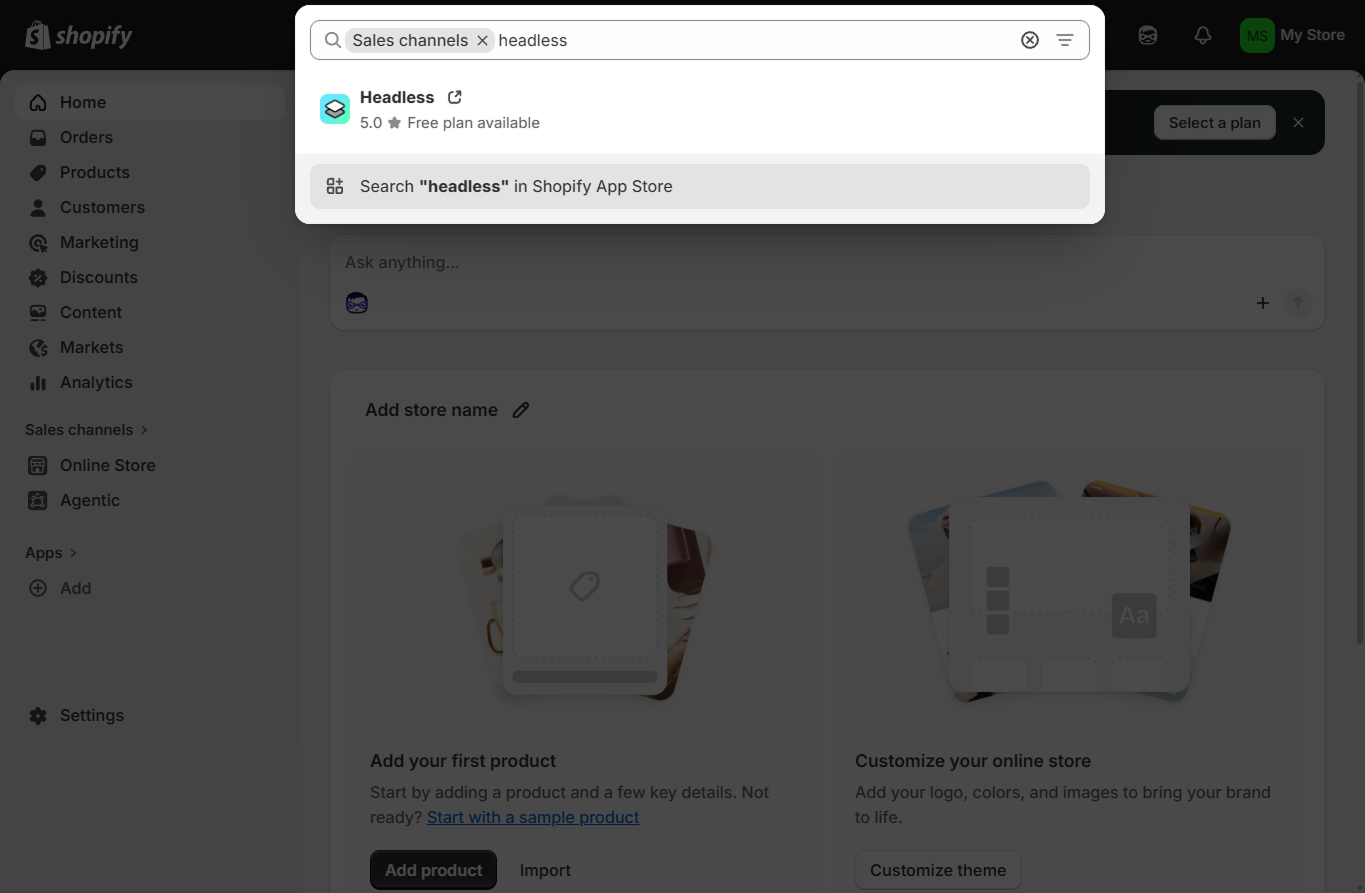
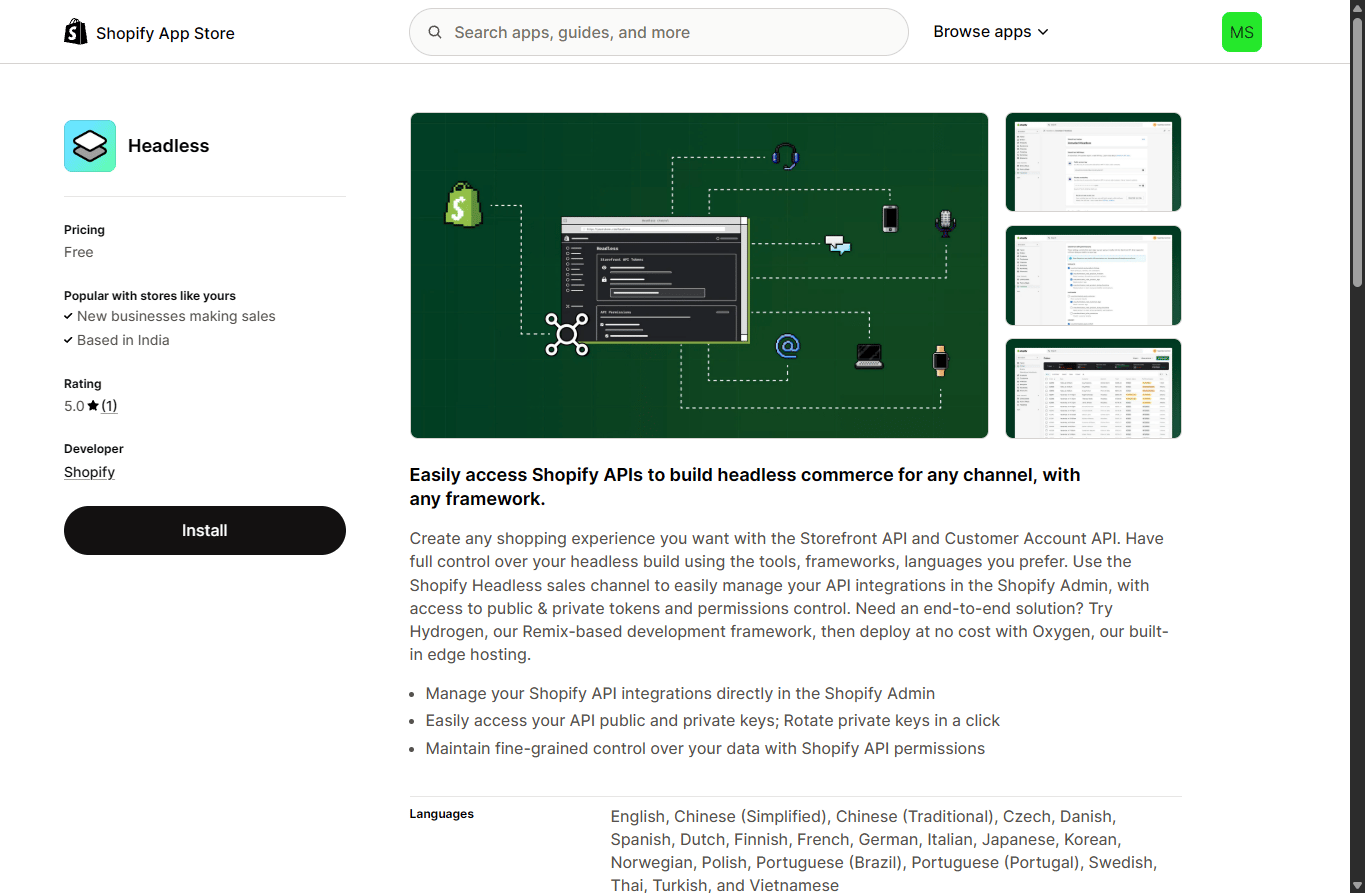
Ctrl/Cmd + K), filter by Sales channels, and type headless. Click the Headless result to jump to its Shopify App Store listing.3
Create a Storefront
Inside the Headless channel, click Add storefront. Give it a name like 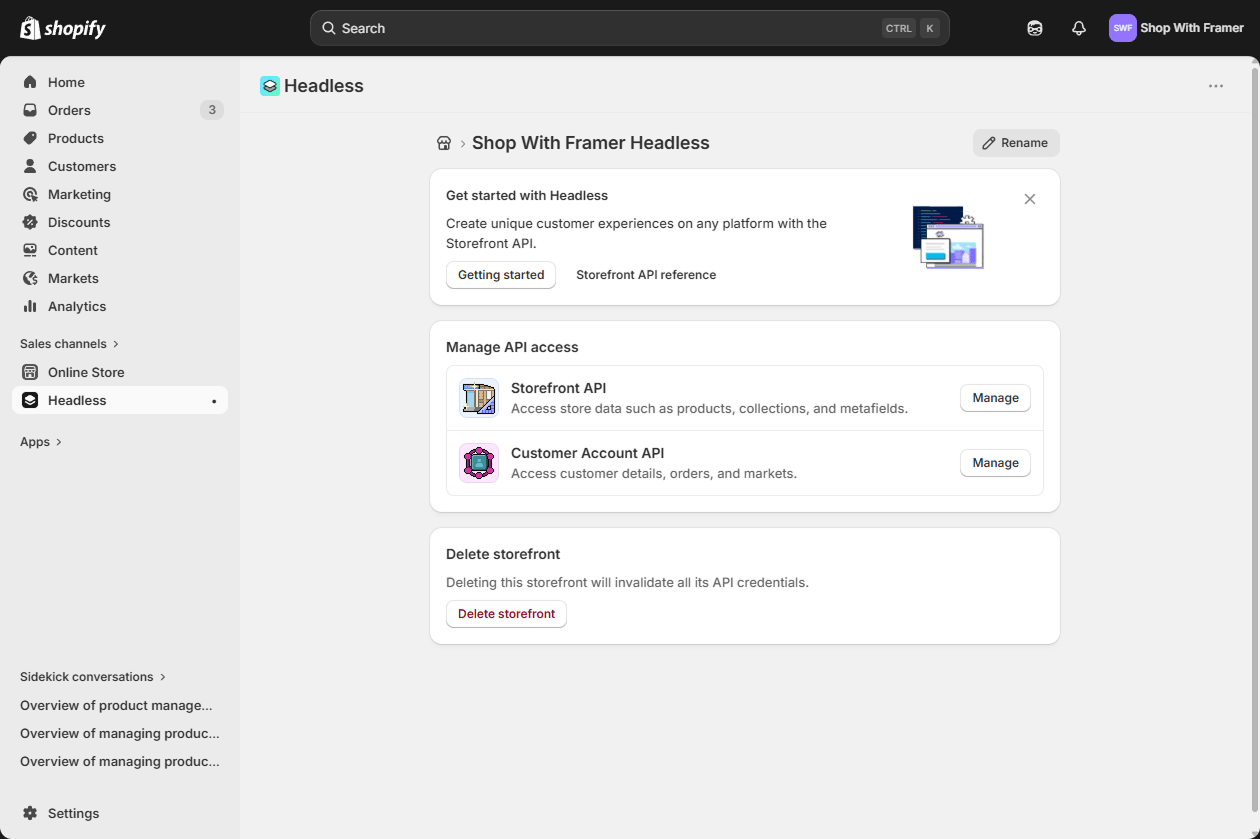
Frammerce and click Create storefront.Each storefront gets its own set of API tokens, so you can keep your Frammerce credentials separate from anything else you build later. From the storefront overview you can rename it, manage the Storefront API and Customer Account API scopes, or delete the storefront to invalidate all its credentials at once.4
Enable the Storefront API scopes Frammerce needs
On the storefront you just created, find the Storefront API card and click Manage. Enable the following scopes:
unauthenticated_read_product_listingsunauthenticated_read_product_inventoryunauthenticated_read_product_tagsunauthenticated_read_collection_listingsunauthenticated_read_selling_plansunauthenticated_read_checkoutsunauthenticated_write_checkoutsunauthenticated_read_customers
5
Copy the Storefront API access token
Back on the storefront overview, scroll to the Storefront API access tokens section. Click the copy icon next to the public access token - this is the token Frammerce uses.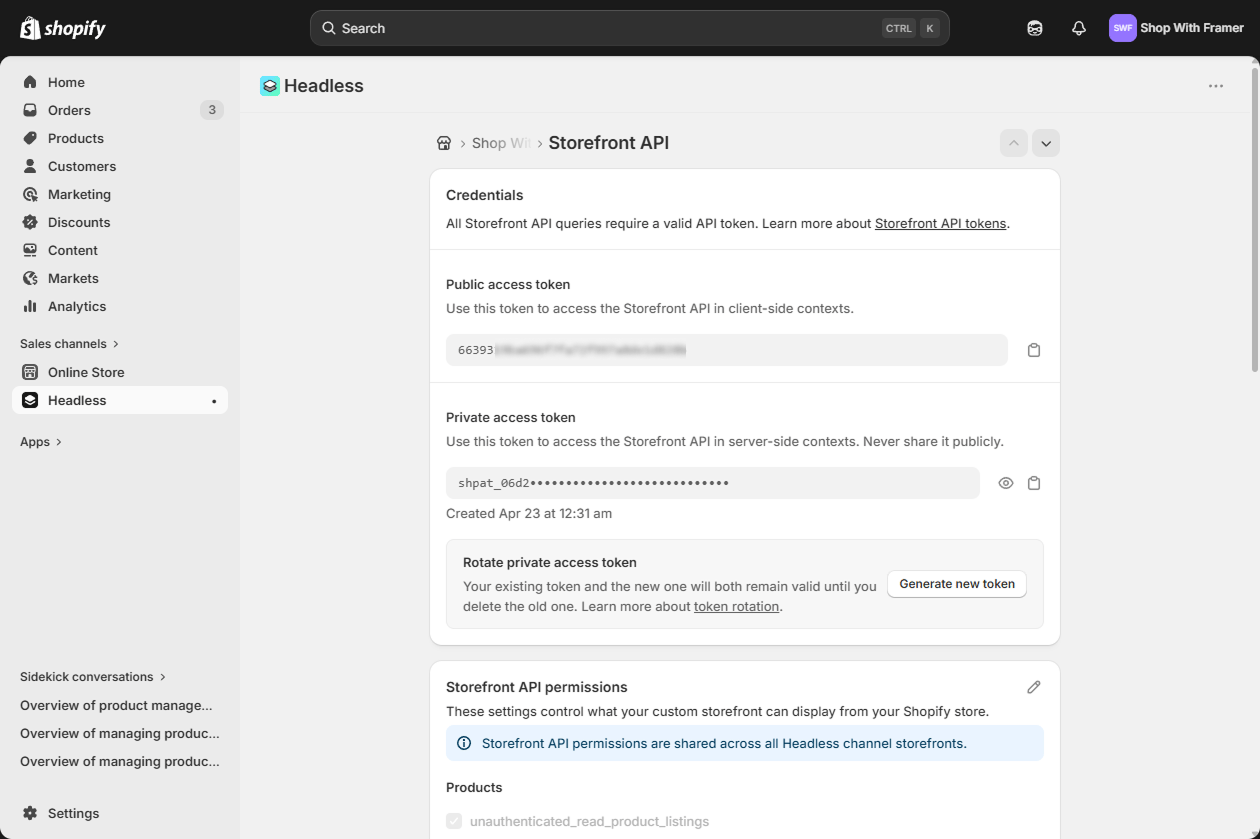
Use the public access token (read-only, safe to ship to the client). Don’t paste a private token - those have elevated scopes and shouldn’t sit in a published Framer site.
Use it in Frammerce
Paste the token into the Storefront access token field on the Frammerce connect form, along with your.myshopify.com domain. Click Connect.
Connect your store
Back to the Quickstart - finish the setup flow.
Rotating a token
If you ever need to rotate the token (e.g. a teammate left, the token leaked), regenerate it in the Headless channel, then in Frammerce:- Open Settings in the plugin panel
- Disconnect Store
- Open the CMS screen → paste the new token → Connect
headStart updates on the next plugin open.