> ## Documentation Index
> Fetch the complete documentation index at: https://frammerce.com/docs/llms.txt
> Use this file to discover all available pages before exploring further.
# Sync Settings
> Per-project toggles that decide what extra Shopify fields get pulled into the Framer CMS and runtime.
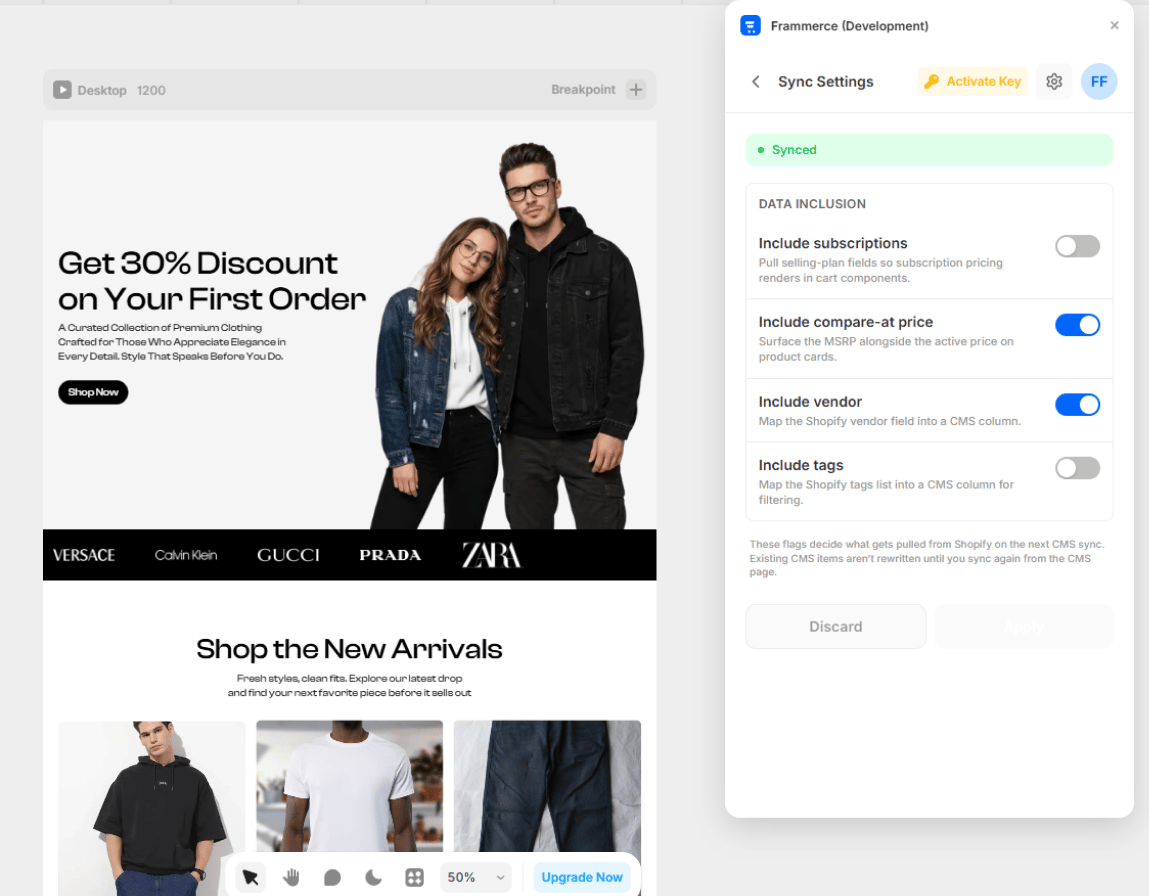
Sync Settings is a per-project page that controls what optional Shopify fields Frammerce pulls in. Open it from **Settings → Sync Settings** in the plugin panel.
 ## Toggles
Frammerce ships four data-inclusion toggles. Each is off by default; turn one on when you actually use that data in your store.
Pulls Shopify **selling plans** so subscription pricing renders correctly in cart components.
Turn on if you sell subscription products via Shopify Subscriptions.
Surfaces the **MSRP** alongside the active price on product cards (the struck-through price).
Turn on if you run sales and want to show original prices.
Maps the Shopify **vendor** field into a CMS column.
Turn on if you want to filter or display by vendor (multi-brand stores, marketplaces).
Maps the Shopify **tags** list into a CMS column for filtering.
Turn on if you use Shopify tags to categorise products.
## Draft → Apply
Sync Settings uses a **draft → apply** flow, not auto-save.
Your change goes into the draft. A status pill at the top shows the pending count.
The green **Apply** button promotes draft → applied → `pluginData`. Once applied, your changes affect the next CMS sync.
Rolls the draft back to the last applied state.
These flags decide what gets pulled from Shopify **on the next CMS sync**. Existing CMS items aren't rewritten - re-sync to apply changes to already-synced products.
## When to revisit
You typically set these once. Common reasons to revisit:
* **Launching subscriptions** → enable Include subscriptions
* **Running a promo with strikethrough prices** → enable Compare-at price
* **Adding multi-vendor support** → enable Vendor
* **Building filtered collection pages** → enable Tags
## Toggles
Frammerce ships four data-inclusion toggles. Each is off by default; turn one on when you actually use that data in your store.
Pulls Shopify **selling plans** so subscription pricing renders correctly in cart components.
Turn on if you sell subscription products via Shopify Subscriptions.
Surfaces the **MSRP** alongside the active price on product cards (the struck-through price).
Turn on if you run sales and want to show original prices.
Maps the Shopify **vendor** field into a CMS column.
Turn on if you want to filter or display by vendor (multi-brand stores, marketplaces).
Maps the Shopify **tags** list into a CMS column for filtering.
Turn on if you use Shopify tags to categorise products.
## Draft → Apply
Sync Settings uses a **draft → apply** flow, not auto-save.
Your change goes into the draft. A status pill at the top shows the pending count.
The green **Apply** button promotes draft → applied → `pluginData`. Once applied, your changes affect the next CMS sync.
Rolls the draft back to the last applied state.
These flags decide what gets pulled from Shopify **on the next CMS sync**. Existing CMS items aren't rewritten - re-sync to apply changes to already-synced products.
## When to revisit
You typically set these once. Common reasons to revisit:
* **Launching subscriptions** → enable Include subscriptions
* **Running a promo with strikethrough prices** → enable Compare-at price
* **Adding multi-vendor support** → enable Vendor
* **Building filtered collection pages** → enable Tags