> ## Documentation Index
> Fetch the complete documentation index at: https://frammerce.com/docs/llms.txt
> Use this file to discover all available pages before exploring further.
# Get a Storefront token
> How to generate the Shopify Storefront API access token Frammerce needs to read your store, using Shopify's Headless sales channel.
Frammerce needs a **Storefront API** access token. The cleanest way to generate one on a modern Shopify store is through the **Headless** sales channel - Shopify's official first-party app for storefronts built outside of a Shopify theme.
The Storefront API is read-only, scoped to the public-facing data your storefront needs (products, collections, cart, checkout), and free on every Shopify plan.
Don't use an Admin API token or a Storefront access token from a generic custom app. Frammerce expects a **Headless storefront** token because it has the right scopes pre-bundled for cart and checkout.
## Generate a token
Go to your store's Shopify admin: `https://YOUR-SHOP.myshopify.com/admin`
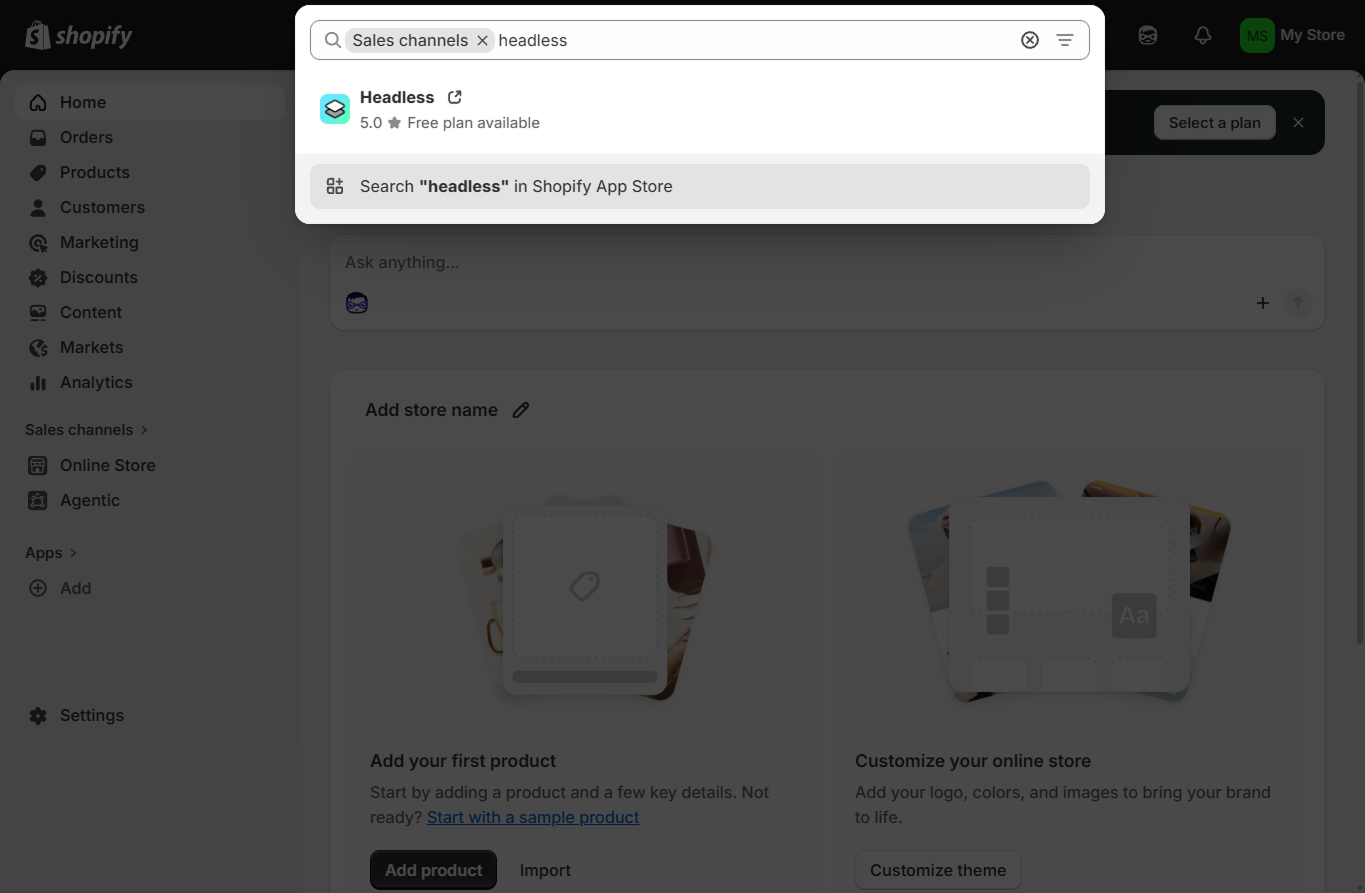
Open the admin's top **Search** bar (`Ctrl/Cmd + K`), filter by **Sales channels**, and type `headless`. Click the **Headless** result to jump to its Shopify App Store listing.
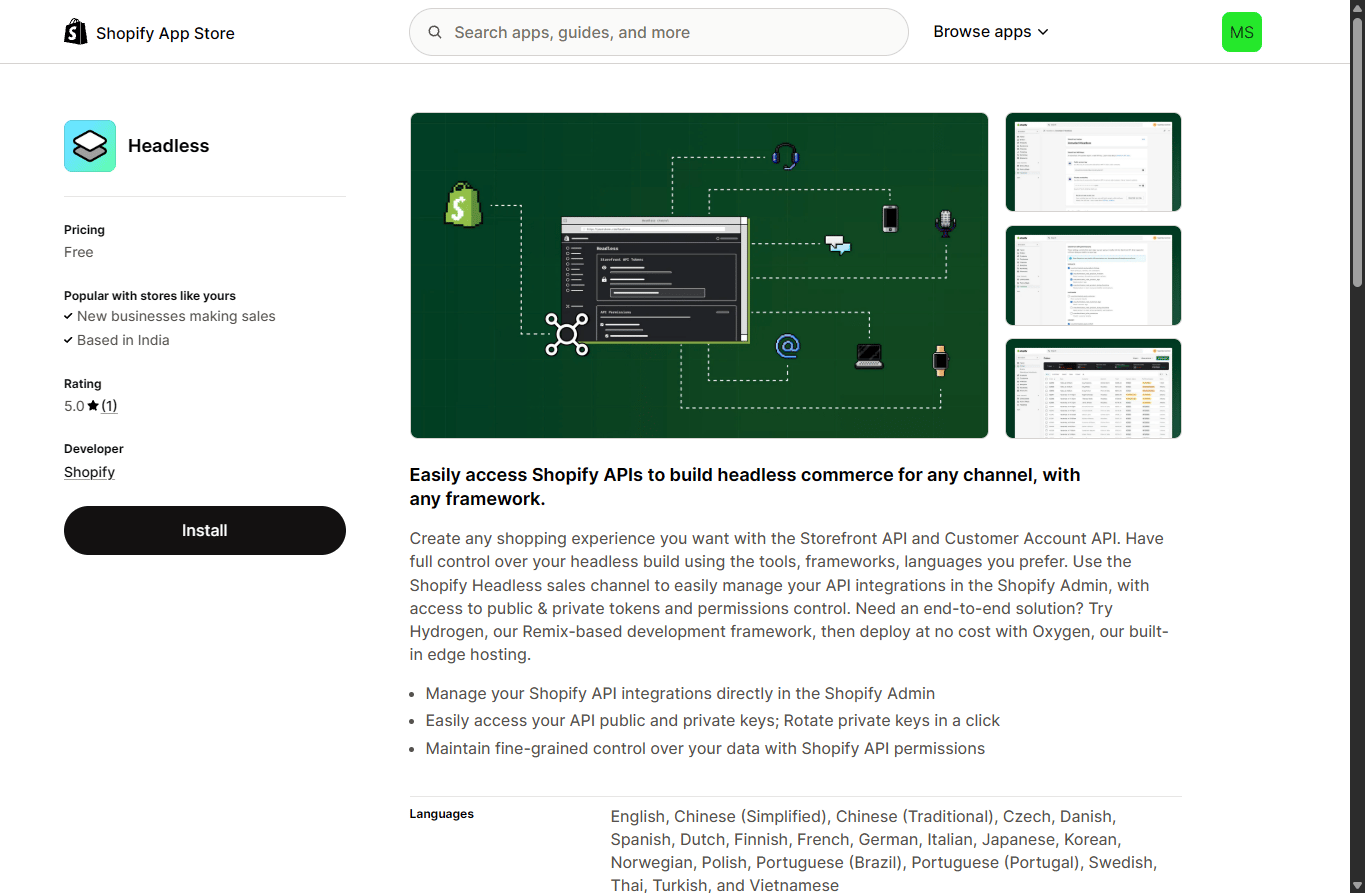
 On the App Store listing, click **Install** to add the Headless sales channel to your store. It's free on every Shopify plan.
 If you've already installed Headless on this store, skip this step and open it from the **Sales channels** group in the sidebar.
Inside the Headless channel, click **Add storefront**. Give it a name like `Frammerce` and click **Create storefront**.
Each storefront gets its own set of API tokens, so you can keep your Frammerce credentials separate from anything else you build later. From the storefront overview you can rename it, manage the **Storefront API** and **Customer Account API** scopes, or delete the storefront to invalidate all its credentials at once.
If you've already installed Headless on this store, skip this step and open it from the **Sales channels** group in the sidebar.
Inside the Headless channel, click **Add storefront**. Give it a name like `Frammerce` and click **Create storefront**.
Each storefront gets its own set of API tokens, so you can keep your Frammerce credentials separate from anything else you build later. From the storefront overview you can rename it, manage the **Storefront API** and **Customer Account API** scopes, or delete the storefront to invalidate all its credentials at once.
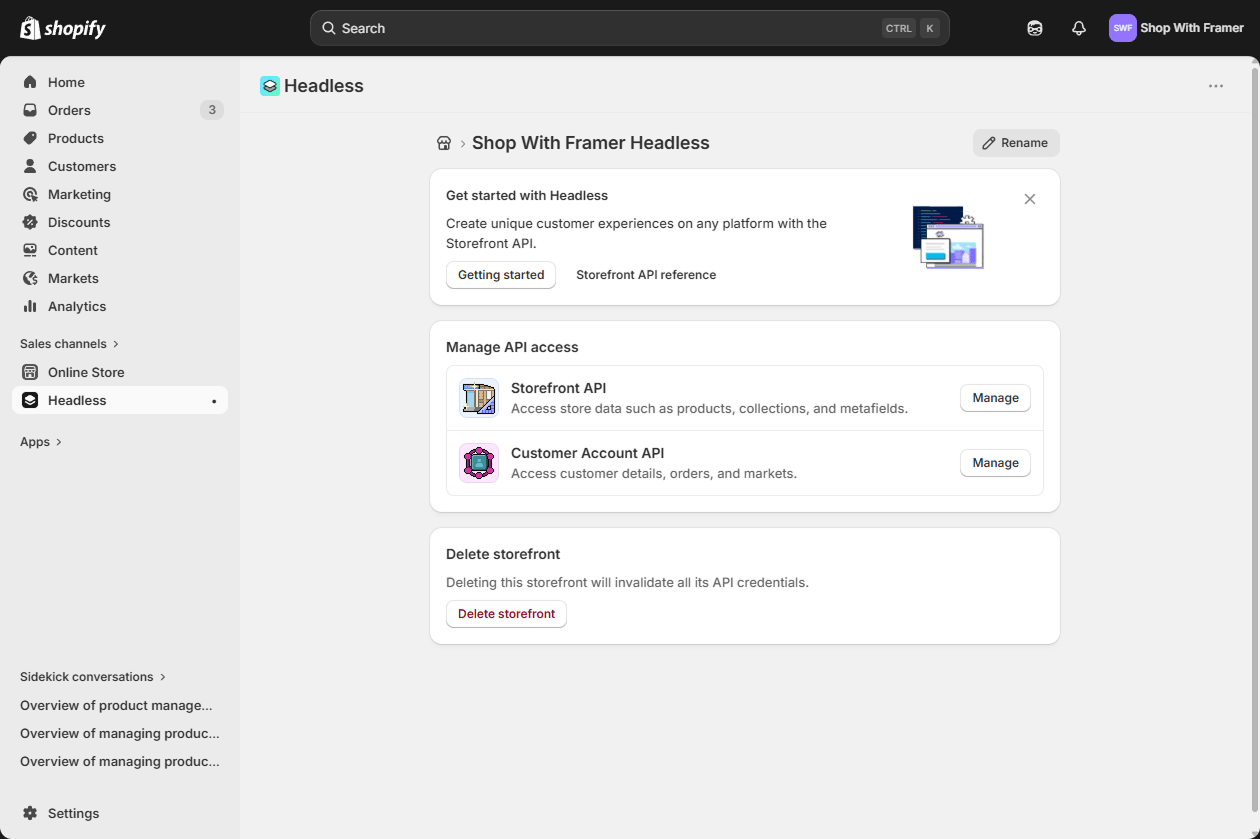 On the storefront you just created, find the **Storefront API** card and click **Manage**. Enable the following scopes:
* `unauthenticated_read_product_listings`
* `unauthenticated_read_product_inventory`
* `unauthenticated_read_product_tags`
* `unauthenticated_read_collection_listings`
* `unauthenticated_read_selling_plans`
* `unauthenticated_read_checkouts`
* `unauthenticated_write_checkouts`
* `unauthenticated_read_customers`
The Headless channel pre-selects most of these by default. Save the changes.
Back on the storefront overview, scroll to the **Storefront API access tokens** section. Click the copy icon next to the **public access token** - this is the token Frammerce uses.
On the storefront you just created, find the **Storefront API** card and click **Manage**. Enable the following scopes:
* `unauthenticated_read_product_listings`
* `unauthenticated_read_product_inventory`
* `unauthenticated_read_product_tags`
* `unauthenticated_read_collection_listings`
* `unauthenticated_read_selling_plans`
* `unauthenticated_read_checkouts`
* `unauthenticated_write_checkouts`
* `unauthenticated_read_customers`
The Headless channel pre-selects most of these by default. Save the changes.
Back on the storefront overview, scroll to the **Storefront API access tokens** section. Click the copy icon next to the **public access token** - this is the token Frammerce uses.
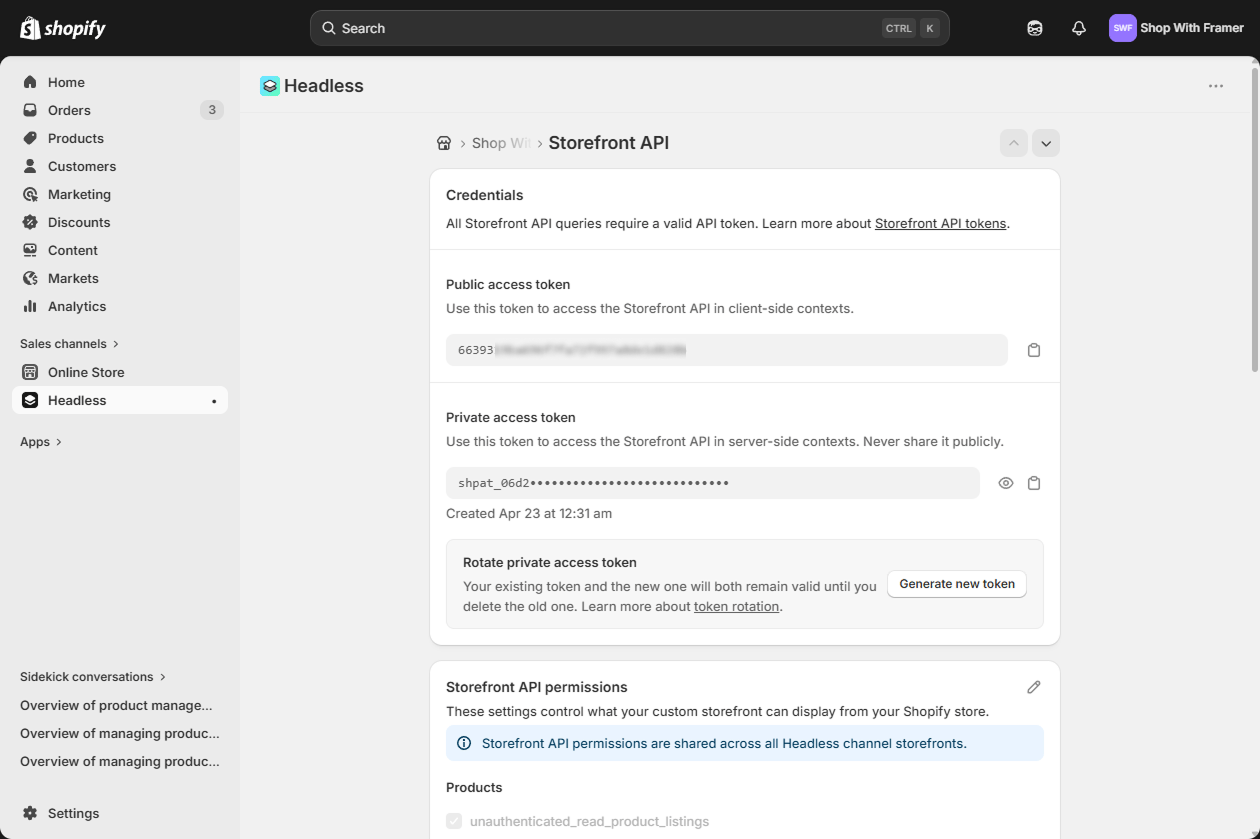 Use the **public** access token (read-only, safe to ship to the client). Don't paste a private token - those have elevated scopes and shouldn't sit in a published Framer site.
## Use it in Frammerce
Paste the token into the **Storefront access token** field on the Frammerce connect form, along with your `.myshopify.com` domain. Click **Connect**.
Back to the Quickstart - finish the setup flow.
## Rotating a token
If you ever need to rotate the token (e.g. a teammate left, the token leaked), regenerate it in the Headless channel, then in Frammerce:
1. Open **Settings** in the plugin panel
2. **Disconnect Store**
3. Open the **CMS** screen → paste the new token → **Connect**
The cart runtime config in your Framer project's `headStart` updates on the next plugin open.
Use the **public** access token (read-only, safe to ship to the client). Don't paste a private token - those have elevated scopes and shouldn't sit in a published Framer site.
## Use it in Frammerce
Paste the token into the **Storefront access token** field on the Frammerce connect form, along with your `.myshopify.com` domain. Click **Connect**.
Back to the Quickstart - finish the setup flow.
## Rotating a token
If you ever need to rotate the token (e.g. a teammate left, the token leaked), regenerate it in the Headless channel, then in Frammerce:
1. Open **Settings** in the plugin panel
2. **Disconnect Store**
3. Open the **CMS** screen → paste the new token → **Connect**
The cart runtime config in your Framer project's `headStart` updates on the next plugin open.